Posts

Comments in Android

Image
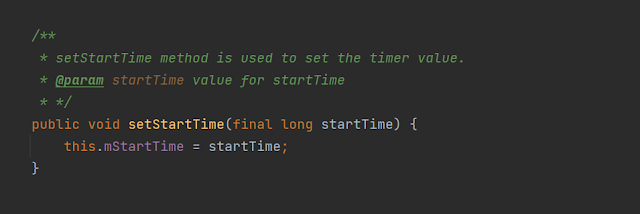
Introduction There are three types of comments you can use in Android Studio  Line Comment - // Block Comment - /* */ JavaDoc - /** */ This post is all about different tips and tricks which I found over the years of using JavaDocs from various projects. JavaDoc is a utility that Java, Android or Kotlin developers can use with the help of installed Java SDK to generate code documentation. This is a simple example of using JavaDoc comments in Android Studio. With the help of the JavaDoc comments defined for setStartTime method we can get this kind of information snippet Tips You can use a file of a project with another file with the help of @link annotation used in JavaDoc. Syntax is {@link FileName} /** * A ViewModel used for the { @link ChronoActivity2}. */ You can define parameter names of a method with the help of @param annotaion. e.g. * @param startTime value for startTime To Be Continued... Reference https://freakycoder.com/android-studio-tips-tricks-2-comments-shortcut-...
SSLSocketFactory in Android

Image
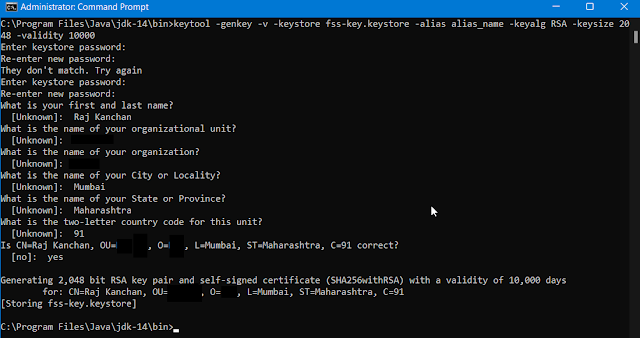
Overview SSLSocketFactory is used to create secure sockets. Steps to follow First you have to create a key store. Open command prompt using Administrator login. Type " cd C:\Program Files\Java\jdk-14\bin ". Type the below command keytool -genkey -v -keystore my-key.keystore -alias my-key-alias-keyalg RSA -keysize 2048 -validity 10000 Follow the steps given in the screenshot: For - keyalg you can use RSA, DSA, EC to generate asymmetric key pair or use DES, 3DES to generate symmetric key pair. Then you have to generate a certificate Open command prompt using Administrator login. Type " cd C:\Program Files\Java\jdk-14\bin ". Type the below command keytool -certreq -alias "my-key-alias" -file mycertreq.csr -keystore my-key.keystore Follow the steps given in the screenshot. Note: The password , alias name , keystore name must be the same which you used while creating the keystore . An example of creating a subclass of SSLSocketFactory class TLSSocketFact...

Connectivity in Android

Image
Connect to the network To perform network operations in your application, your manifest must include the following permissions: < uses-permission android :name ="android.permission.INTERNET" /> < uses-permission android :name ="android.permission.ACCESS_NETWORK_STATE" /> Note: Both the Internet and ACCESS_NETWORK_STATE permissions are normal permissions , which means they're granted at install time and don't need to be requested runtime . Best practices for secure network communication Minimize the amount of sensitive or personal user data that you transmit over the network. Send all network traffic from your app over SSL . Consider creating a network security configuration , which lets your app trust custom certificate authorities (CAs) or restrict the set of system CAs that it trusts for secure communication. Follow networking security tips Choose an HTTP client Most network-connected apps use HTTP to send and receive data. The Android pla...

App data and files in Android

Image
Save data using SQLite Saving data to a database is ideal for repeating or structured data, such as contact information. Define a schema and contact Schema is a formal declaration of how the database is organized.  You should create a companion class, known as a contract class , which explicitly specifies the layout of your schema in a systematic and self-documenting way. A contract class is a container for constants that define names for URIs, tables and columns. The contract class allows you to use the same constants across all the other classes in the same package. A good way to organize a contract class is to put definitions that are global to your whole database in the root level of the class. Then create an inner class for each table. Each inner class enumerates the corresponding table's columns. For complete implementation please click the header or check the e.g. public class DeviceContract { private DeviceContract () { } public static class DeviceEntry impl...